Alarm Lock beta builds are distributed through Apple’s TestFlight. The standard, official way to test iOS apps before they’re on the App Store. It’s free and made by Apple.
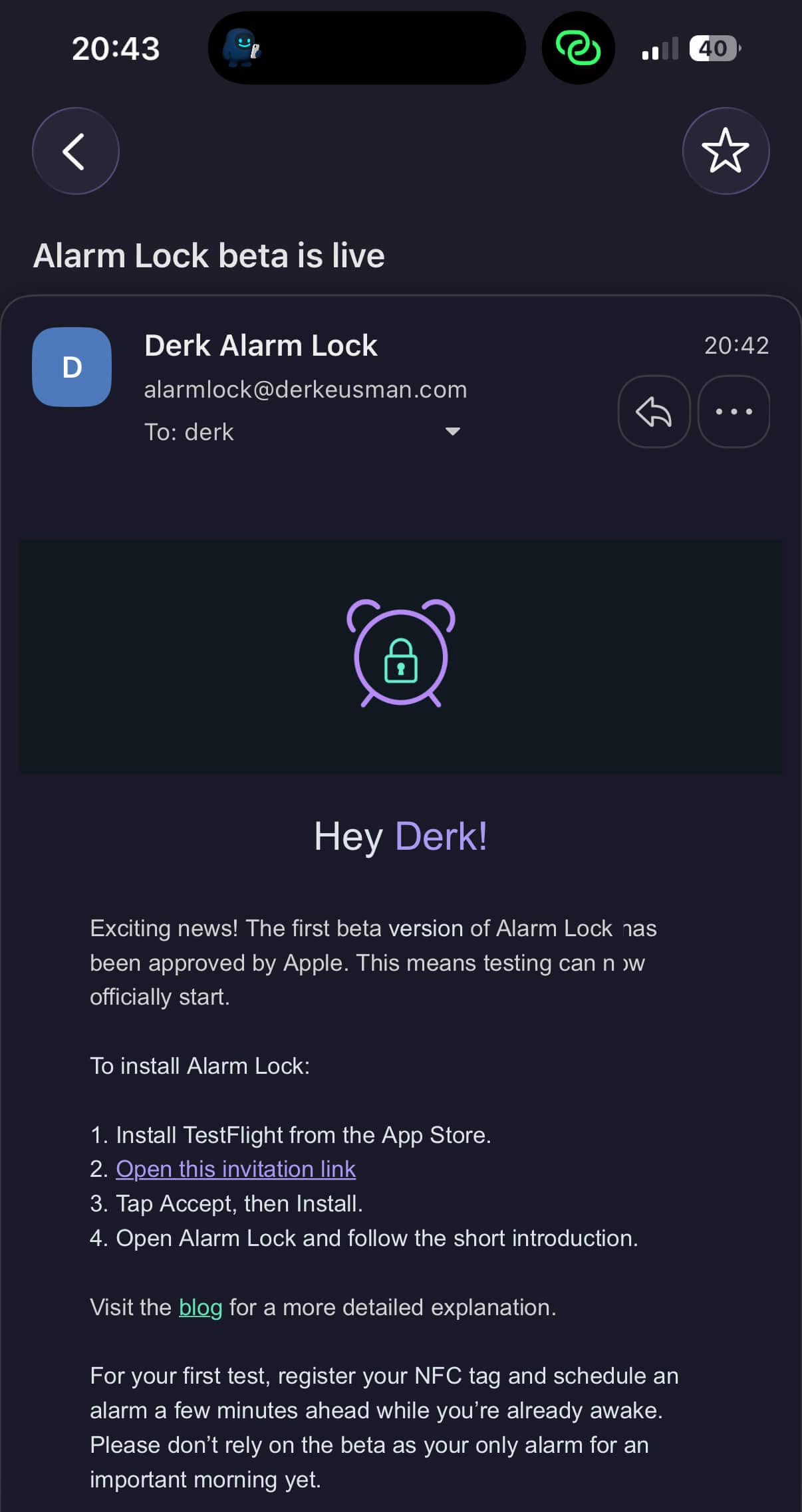
1. Get your invite
Once the app is ready to be tested, you’ll get an email with an invite link. Open that email on the iPhone you want to test on. it makes the next steps faster.
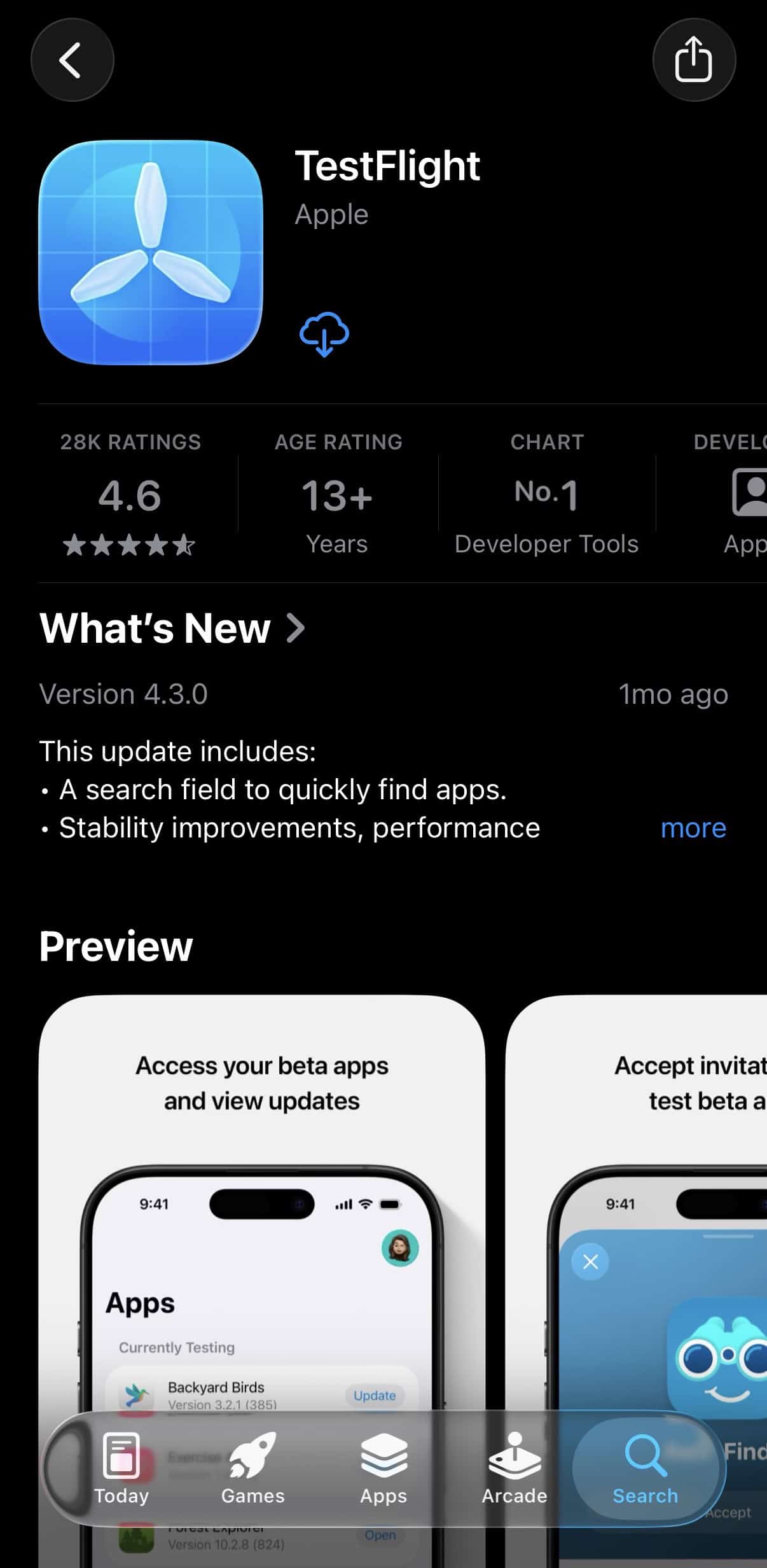
2. Install TestFlight
If you don’t already have the TestFlight app, your invite link will prompt you to install it from the App Store first. It’s an Apple app, free. Install it like you would any other app.
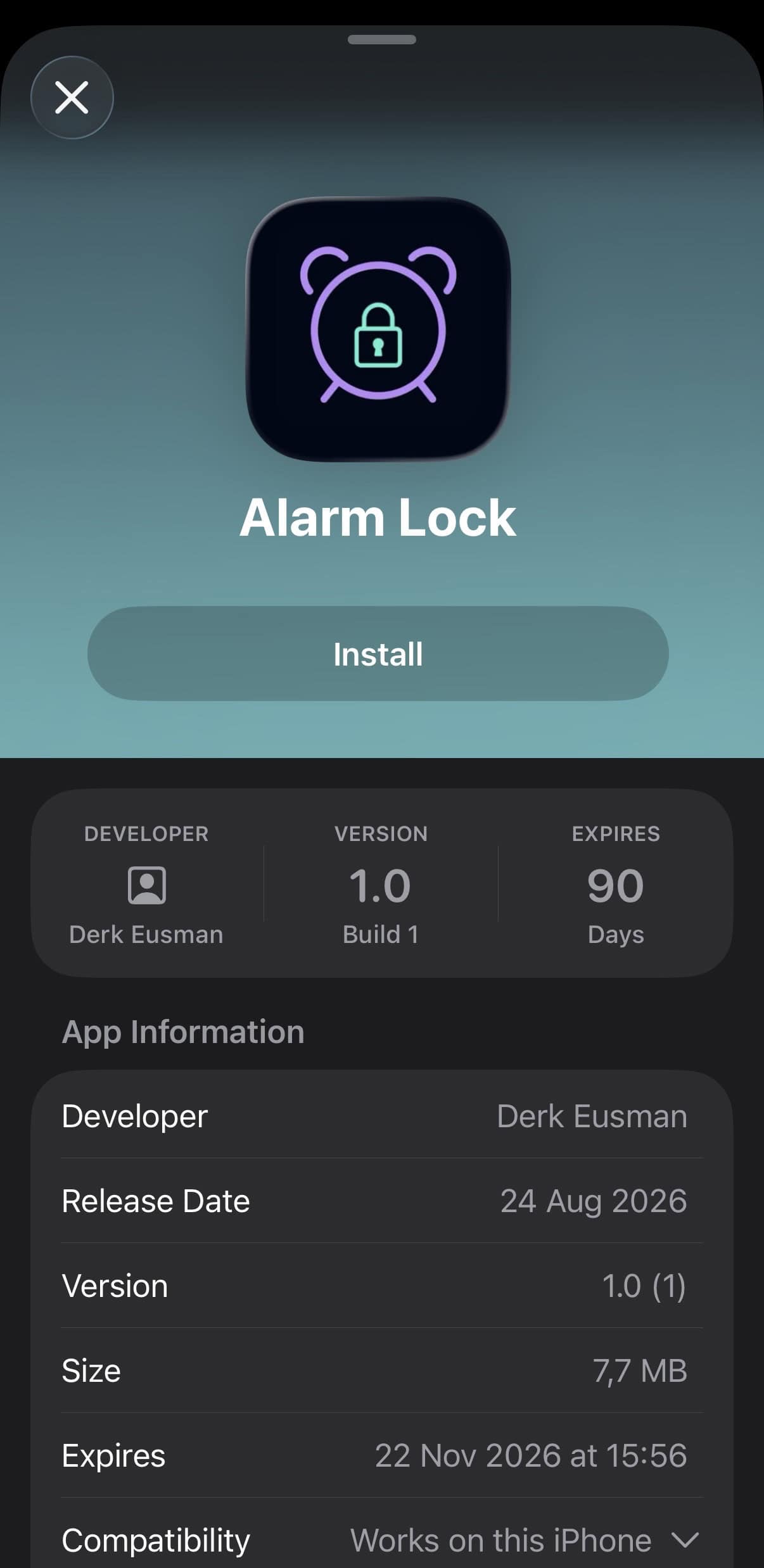
3. Install Alarm Lock
Tapping the link in your email opens Alarm Lock’s page inside TestFlight, showing the developer, version, and how many days the build has left before it expires. Tap “Install,” and it downloads the same way the App Store downloads a normal app.
4. Find it and open it
Alarm Lock shows up on your home screen with a small orange dot on the icon. That just means it’s a beta build, not a bug.
Open it, and the app walks you through registering your first NFC tag and setting your alarm. See the separate getting-started post for the full walkthrough. If anything looks off or breaks, TestFlight has a built-in feedback tool, just shake your phone or use the TestFlight app itself to send a screenshot and a note directly to me. You can use the markup feature to point out things on the screenshot.
A couple of things worth knowing
- Beta builds expire after 90 days. If yours does, I’ll ship a new one. You’ll get a notification through TestFlight to update, same as any app update.
- Beta means beta: things may break. That’s exactly what this stage is for, and every bit of feedback helps.
- Nothing about testing requires an account or personal data beyond your email for the invite itself. Same privacy approach as the rest of Alarm Lock.
- Please do not yet rely on Alarm Lock to wake you up in the morning, make sure to set a backup alarm.
Thanks for being one of the people willing to try something unfinished. It’s the only way this gets better.